
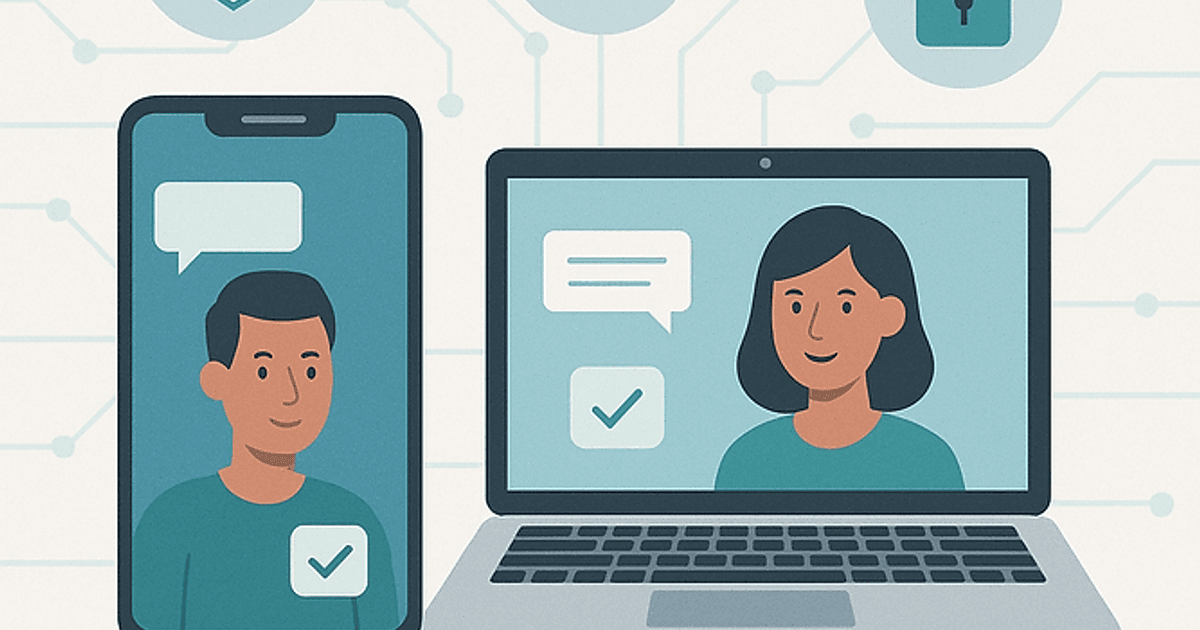
Telehealth Tips: How to Prepare for Virtual Appointments
In today’s fast-evolving healthcare landscape, telehealth is more than just a temporary convenience—it's a transformational approach for access, safety, and patient satisfaction. Whether you’re new to virtual care or looking to optimize your experience, understanding how to prepare for a telehealth appointment can maximize your outcomes and foster a stronger partnership with your provider.
Why Telehealth Matters
Telehealth allows you to connect with your primary care physician, specialists, or care team remotely using video, audio, or secure messaging platforms. For those with mobility challenges, chronic conditions, or busy schedules, telehealth brings critical care right to your living room. The benefits are broad and profound:
- Accessibility and Flexibility: Geographical distance is no longer a barrier. You can consult your doctor whether you’re in Burtonsville, across Maryland, or traveling for business or leisure.
- Infection Control: Eliminating waiting rooms and in-person traffic helps protect vulnerable populations and reduce the spread of contagious diseases—a priority we all now deeply appreciate.
- Continuity in Chronic Care: Telehealth ensures that regular touchpoints for managing diabetes, hypertension, mental health, and more remain uninterrupted, even when life’s logistics become challenging.
- Convenience: No parking, no travel delays, and less time away from work or family.
For more details on virtual care’s role in modern healthcare, read our earlier post: Embracing Telemedicine and Virtual Care: Enhancing Your Concierge Primary Care Experience.
Step 1: Confirm Insurance Coverage
Start by ensuring your insurance plan covers telehealth. Most commercial plans, Medicare, and many Medicaid programs have expanded coverage, but specifics can differ. Call your carrier or our office (240-389-1986) for assistance. For strategies to make the most of your benefits, visit: How to Make the Most of Your Health Insurance.
Step 2: Test Your Technology Early
A smooth, stress-free visit starts with reliable technology:
- Device Compatibility: Use a computer, tablet, or smartphone with a camera and microphone.
- Internet Connection: A stable, high-speed connection is essential. If possible, use a wired ethernet cable instead of Wi-Fi to prevent dropouts.
- App or Platform Setup: Download, install, and sign into the advised telehealth app ahead of time—you'll typically receive instructions from our staff or via your appointment confirmation. Always update your device and app software to the latest versions.
- Audio/Visual Check: Test your microphone, camera, and speakers. Ask a friend or family member to join you in a test call if you’re uncertain.
- Close Other Apps: Shut down unnecessary programs, especially those that stream video or audio, to conserve bandwidth and minimize distractions.
If you run into technical difficulties, follow our troubleshooting instructions below or reference device-specific help portals.
Step 3: Set Up an Ideal Environment
Sound and privacy are essential for quality healthcare conversations. Follow these tips to optimize your space:
- Find a Quiet, Private Spot: A bedroom or home office is ideal. If privacy is at a premium, a parked car also works.
- Lighting: Face a window or lamp to illuminate your features, but avoid sitting with bright lights behind you.
- Reduce Distractions: Silence your phone, disable alerts, and let family members know you’re unavailable. Arrange for childcare or pet care if needed.
- Camera Placement: Set your device at eye level for the best angle—stack books or cushions if necessary.
- Professionalism: Dress as you would for an in-office visit and keep your space tidy. This signals respect for your provider and sets a focused tone.
Step 4: Gather Your Health Information
Preparation is the foundation for accurate assessment and treatment, especially when your provider can’t physically examine you. Before your appointment:
- Compile Concerns and Questions: Jot down your main reasons for the visit, onset and duration of symptoms, and any specific worries.
- List of Medications and Allergies: Include dosages, frequency, and over-the-counter or herbal supplements.
- Recent Health Readings: If you track your blood pressure, glucose, temperature, weight, or other vitals at home, have these logs ready to share.
- Medical Records and Documents: Upload or be ready to reference hospital discharge papers, diagnostic test results, immunization records, and provider contact info.
- Pen and Paper: Write down your provider’s recommendations, prescriptions, or follow-up actions during the call.
For those managing chronic conditions, check out: The Role of Wearable Technology and Remote Patient Monitoring in Modern Healthcare.
Step 5: Master Virtual Communication Skills
Telehealth requires subtle adaptations in how you interact:
- Face the Camera, Not the Screen: Looking into the camera simulates eye contact, enhancing trust and engagement.
- Speak Clearly and Slowly: Pause briefly after key points to allow your provider to respond or ask for clarification.
- Be Honest and Open: Share all symptoms—even those that seem unrelated or sensitive.
- Ask Questions: If something is unclear, request clarification or repetition.
- Summarize Your Understanding: At the end of the visit, restate the next steps and confirm any follow-up appointments or instructions.
If you’d like more on how to communicate for optimal health outcomes, see: Building a Partnership with Your Primary Care Physician.
Step 6: Troubleshooting Tips for Common Technology Issues
Even with preparation, technical hiccups can occasionally occur. Here’s what to do:
- Internet Dropouts: Move closer to your router, switch to mobile data, or temporarily switch off your camera to conserve bandwidth.
- Audio/Visual Malfunctions: Restart your device, check audio and video settings, and ensure devices are charged or plugged in.
- Login or Platform Errors: Refresh your browser, reinstall the telehealth app, or use a different device if necessary.
- Backup Plan: Always have your provider’s phone number handy (240-389-1986). If video fails, a phone call can keep the appointment on track.
Concerned about privacy online? Our blog post on Healthcare Cybersecurity and Data Privacy offers expert strategies to protect your information.
Extra Tips for Success
- Update Your Emergency Contacts: Make sure we have current contact numbers and your preferred pharmacy on file.
- Be On Time: Join your session 5 minutes early to allow for last-minute device adjustments.
- Review Aftercare Instructions: After your session, follow up on any referrals, prescriptions, or recommended readings as discussed.
Ready for a Seamless Virtual Care Experience?
With the right preparation, telehealth can deliver an experience that’s convenient, effective, and deeply personalized. Our practice at 3905 National Drive, Suite 220 in Burtonsville, MD, is dedicated to ensuring every patient—whether seen in person or online—receives attentive, expert care.
Want to join our concierge practice? Learn more about becoming a member.
Already a member and need to book a virtual or in-person visit? Schedule your appointment online.
Prefer to speak to our team directly? Call 240-389-1986, fax 833-449-5686, or email staff@tirmal-md.com. We’re here to support your healthcare journey, wherever you are.
You Might Also Like
- Embracing Telemedicine and Virtual Care: Enhancing Your Concierge Primary Care Experience
- Building a Partnership with Your Primary Care Physician
- The Role of Wearable Technology and Remote Patient Monitoring in Modern Healthcare
- Healthcare Cybersecurity and Data Privacy: Protecting Your Personal Health Information in the Digital Age
- How to Make the Most of Your Health Insurance
References
- Best Practices for Patient Engagement with Telehealth - Harvard Medical School
- How to Get Ready Checklist - Telehealth - American Heart Association
- Telehealth Checklist: Preparing for Your Virtual Doctor Visit
- The Complete Guide to Private Practice Telehealth - Simple Practice
- Telehealth Checklist: Preparing for Your Virtual Doctor Visit
- 8 Tips for Effective Patient Communication in a Telehealth System
- Cultivating trust and building relationships during a telehealth visit
- Troubleshooting Telehealth appointment issues – SimplePractice